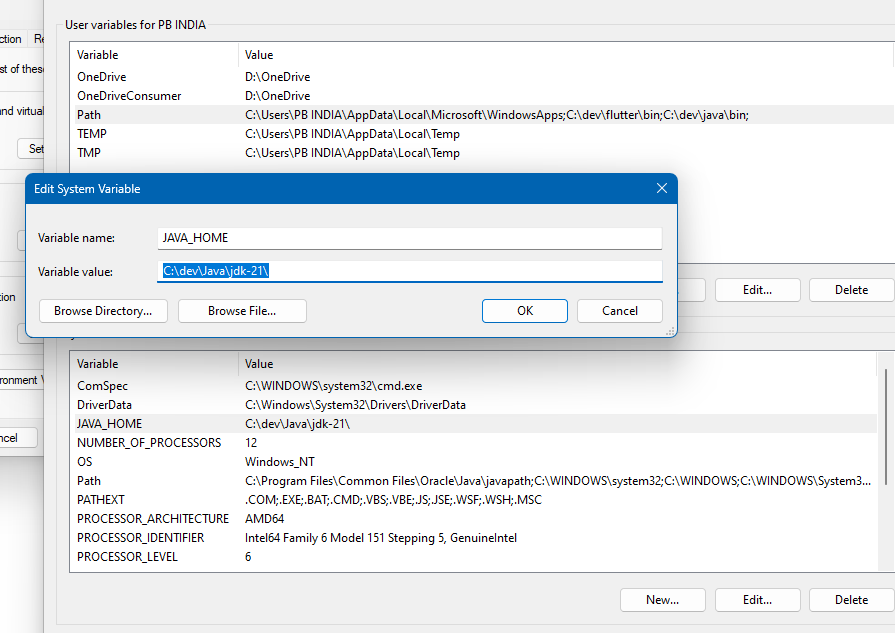
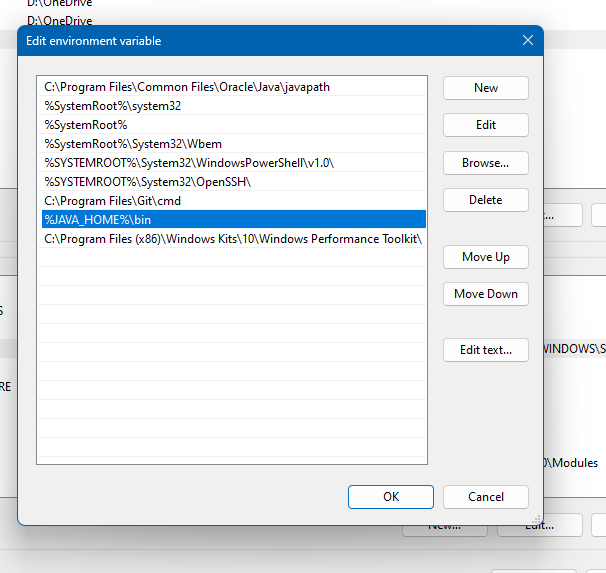
Step 01. Downaload Latest Android Studio by Google Search
Link : https://developer.android.com/studio
Then Intall ( You Can Install Any Specific Director based on Free Space, Becouse Android Studio Consuming to Much Space, in my case i have Installed in E/Android/Android Studio
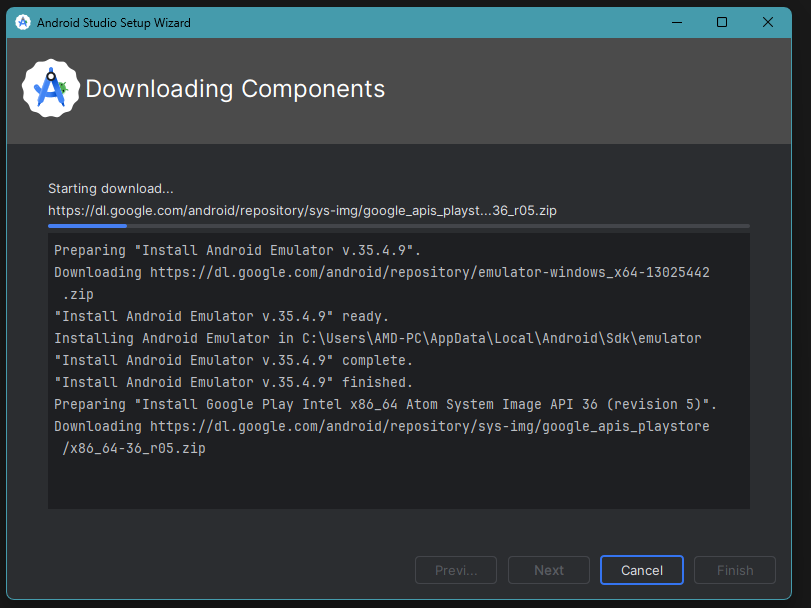
Also Install Nessesary File Prompt when install (Screetshot)
now downalod dart from here for windows https://dart.dev/get-dart/archive download Stable Channel click Dart SDKDownaload in Zip, Then Extract D:\Android\Dart\
now setup path go to android studio settings> language and fra…>Dart set DART SDK PAthD:\Android\Dart\dart-sdk enable for ur project
————————————————————————
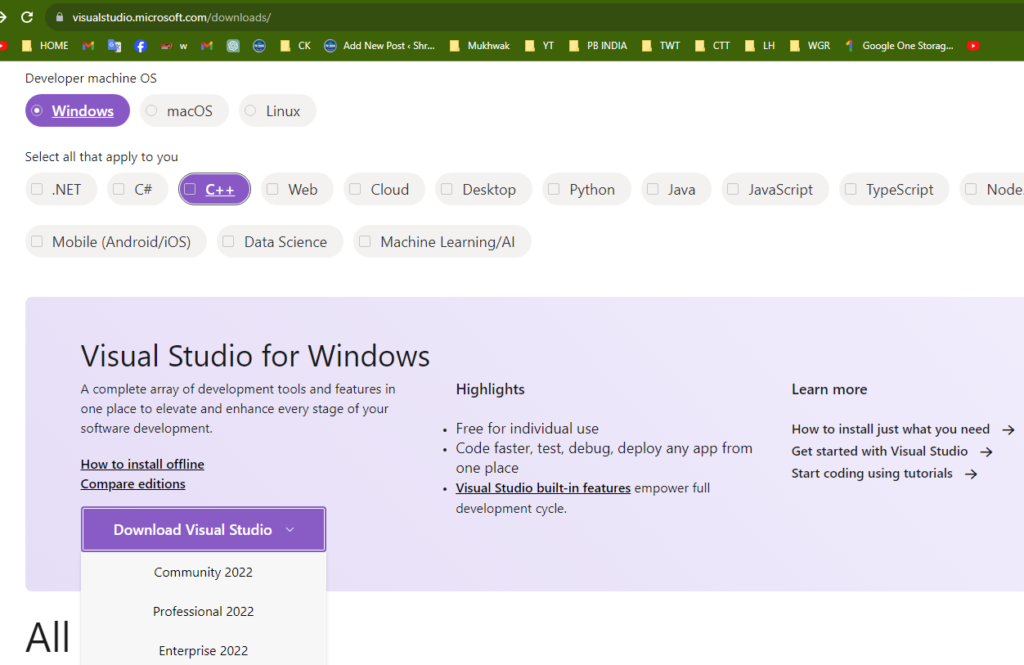
1. https://visualstudio.microsoft.com/downloads/ with c++ Cmmunity 2022 or Higher version (default instaltion) see in image
2. Download Git From Here https://git-scm.com/download/win
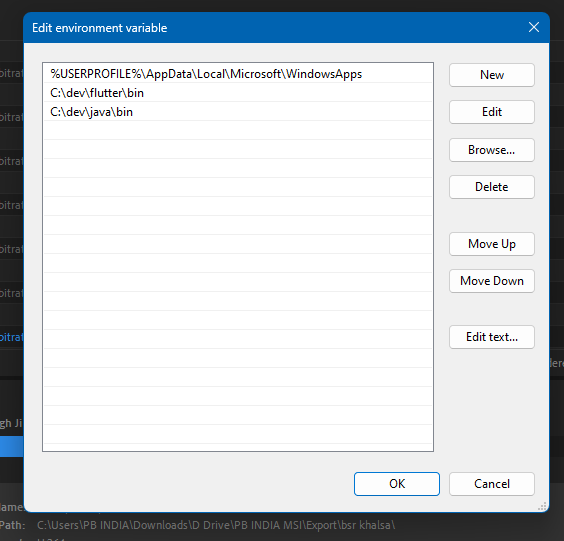
3. Download Flutter install or Extract in C:\dev\flutter you can also make src folder or dev. (here i created dev folder in c drive)
4. Download and install Android Studio C:\dev\AndroidStudio and Open Go to SDK Manager>SDK Tool Select Android SDK Command-line Tools (latest)
if
[X] Android toolchain – develop for Android devices X Unable to locate Android SDK.
cmd:- if android studio intalled on C:\dev\SDK
flutter config --android-sdk C:\dev\SDK
restart cmd instant then run flutter doctor
flutter doctor --android-licenses
enter y.y.y..y..y.y.y,,,,,,,,,,,,,,,,
Creating Youtube Channel or Facebook Live Streaming
Creating an Effective Live Streaming Setup: A Comprehensive Guide
In the modern digital landscape, live streaming has evolved into a powerful means of connecting with audiences, sharing content, and fostering community engagement. Whether you’re a content creator, a business, or an individual with a message to convey, establishing a successful live streaming environment requires meticulous planning and attention to detail. From hardware and software choices to audio, video, lighting, and more, this comprehensive guide will help you craft an impactful live streaming setup.
1. Hardware Essentials: The foundation of an effective live streaming setup lies in choosing the right hardware components. Here’s a breakdown of essential elements:
Computer: Start with a robust computer – a high-performance desktop or laptop with a multicore processor, generous RAM (8GB or more), and a dedicated graphics card is highly recommended.
Camera: The camera you select directly influences your video quality. Opt for DSLRs, mirrorless cameras, webcams, or even modern smartphones boasting high-quality camera capabilities.
Blackmagic Intensity Shuttle Card: Incorporate a Blackmagic Intensity Shuttle Card to facilitate superior video capture and streaming capabilities.
Microphone: Pristine audio is paramount. Invest in an external microphone; options span USB and XLR microphones with audio interfaces to lavalier microphones. Employ an XLR wire for dependable audio transmission.
Audio Mixer: If you’re sourcing audio from an amplifier or multiple sources, an audio mixer enables precise control and fine-tuning of audio levels.
Caller Mic: For interactions, interviews, or call-ins, integrate a dedicated caller microphone to ensure optimal voice recording.
Video Mixer: Incorporate a video mixer to seamlessly transition between multiple video sources, creating a dynamic visual experience.
Lighting: Adequate lighting enhances visibility and overall video quality. Opt for soft, diffused lighting to avoid harsh shadows, and position lights strategically to ensure even illumination.
Internet Connection: A stable, high-speed internet connection is pivotal for uninterrupted streaming. Aim for an upload speed of at least 5-10 Mbps.
Tripod or Mounting: Maintain steady shots by employing a reliable tripod or mounting system for your camera.
BNC or SDI Cable: Ensure top-tier video transmission by connecting your camera to a video mixer using a BNC or SDI cable.
2. Software Solutions: Effectively chosen software streamlines the live streaming process and enhances presentation quality:
Streaming Software: Opt for OBS Studio, Streamlabs OBS, XSplit, or vMix to manage your stream, incorporate overlays, and fluidly switch between sources.
Video Editing Software: For pre-recorded content or post-stream editing, consider Adobe Premiere Pro or Final Cut Pro.
Adobe Illustrator: Craft eye-catching thumbnails using Adobe Illustrator, a versatile graphic design tool.
Adobe After Effects: Elevate your live stream with animations, visual effects, and motion graphics using Adobe After Effects.
3. Audio Setup: Flawless audio quality is pivotal for viewer engagement. Maximize your audio setup:
Connect your microphone to your computer through the appropriate interface (USB or XLR).
Monitor audio quality using headphones.
Apply noise reduction and audio compression techniques to refine sound quality.
4. Video Setup: Your camera and video settings substantially impact visual quality:
Choose your camera and connect it to your computer via USB or a capture card.
Adjust camera settings like exposure, white balance, and focus for optimal results.
Experiment with a green screen for background replacement or virtual backgrounds.
5. Lighting: Effective lighting contributes to a polished appearance:
Opt for soft, diffused lighting to minimize harsh shadows.
Position lights to evenly illuminate your face and reduce glare.
Experiment with different lighting setups to determine the most suitable configuration.
6. Location Matters: Choosing an appropriate location elevates the professionalism of your stream:
Opt for a clutter-free, well-lit, and quiet location for your streaming setup.
Consider how your background aligns with your branding and overall aesthetics.
7. Copyright Considerations: Navigating copyright concerns is essential to prevent legal complications:
Obtain proper licenses or use copyright-free music to avoid infringing on intellectual property.
If displaying lyrics, ensure you have the rights to do so or opt for songs with public domain or Creative Commons licenses.
Design thumbnails that accurately represent your content.
Utilize legible text and vibrant visuals to arouse viewer interest.
9. Mobile Streaming and Internet Speed: For on-the-go streaming, mobile options are valuable:
Android users can explore apps like Streamlabs Mobile or Prism Live Studio for mobile streaming.
Maintain a stable internet connection with an upload speed of 5-10 Mbps for dependable streaming.
10. Video Resolution: Adjust video resolution based on your internet speed:
Aim for a minimum of 720p resolution for a satisfactory viewing experience.
If feasible, consider higher resolutions such as 1080p or 4K for enhanced quality.
Creating an effective live streaming setup entails trial and refinement. Continuously test and fine-tune your setup to deliver the optimal experience for your viewers. By combining top-tier hardware, efficient software, and meticulous planning, you’ll establish captivating and influential live streams that resonate with your audience and fulfill your objectives.
Title: Troubleshooting Video Color Changes in Adobe Premiere Pro 2022. How to Fix it?
Introduction: Adobe Premiere Pro is a powerful video editing software used by professionals and enthusiasts alike. However, sometimes users may encounter issues with the video color changing unexpectedly after importing their footage. If you’ve experienced this problem, don’t worry! In this article, we’ll walk you through a simple solution to address the color change by adjusting the Color Space in the Sequence Settings.
Step-by-Step Guide:
Step 1: Import Your Video Footage Open Adobe Premiere Pro 2022 and start a new project. Then, import the video footage you want to edit by going to “File” > “Import” and selecting your video file.
Step 2: Create a New Sequence After importing your video, it’s essential to create a new sequence that matches the settings of your video. To do this, right-click on the video clip in the Project Panel and select “New Sequence from Clip.”
Step 3: Access Sequence Settings Next, you need to access the Sequence Settings. To do this, right-click on the sequence you just created in the Project Panel and choose “Sequence Settings.”
Step 4: Adjust Video Settings In the Sequence Settings dialog box, you’ll find various video settings that determine how your footage appears in the timeline. To resolve the color change issue, we’ll focus on the “Video” settings.
Step 5: Set Color Space to Rec. 709 Look for the “Color Space” dropdown menu within the “Video” settings. By default, it might be set to something else, leading to the color change problem. Change it to “Rec. 709,” which is a common color space used for HD video.
Step 6: Confirm and Save After selecting “Rec. 709,” click “OK” to apply the changes and close the Sequence Settings dialog box.
Step 7: Verify Your Video Color Now that you’ve adjusted the Color Space, drag your video clip to the timeline and play it back to ensure the color is no longer changing in the preview window. The issue should be resolved, and your video’s colors should look consistent throughout the editing process.
Conclusion: Adobe Premiere Pro 2022 offers robust video editing capabilities, but occasional issues like unexpected color changes can be frustrating. By following this step-by-step guide and adjusting the Color Space to Rec. 709 in the Sequence Settings, you should be able to resolve the problem and have a seamless video editing experience.
Remember, video editing is an iterative process, and troubleshooting is a natural part of it. Don’t hesitate to explore other settings and features in Adobe Premiere Pro to enhance your video editing skills further. Happy editing!
Chandrayaan-3 is the third and most recent lunar exploration mission under Chandrayaan programme. It consists of a lander named Vikram and a rover named Pragyan similar to Chandrayaan-2, but does not have an orbiter. Its propulsion module behaves like a communication relay satellite
How far is Chandrayaan-3 from Earth?
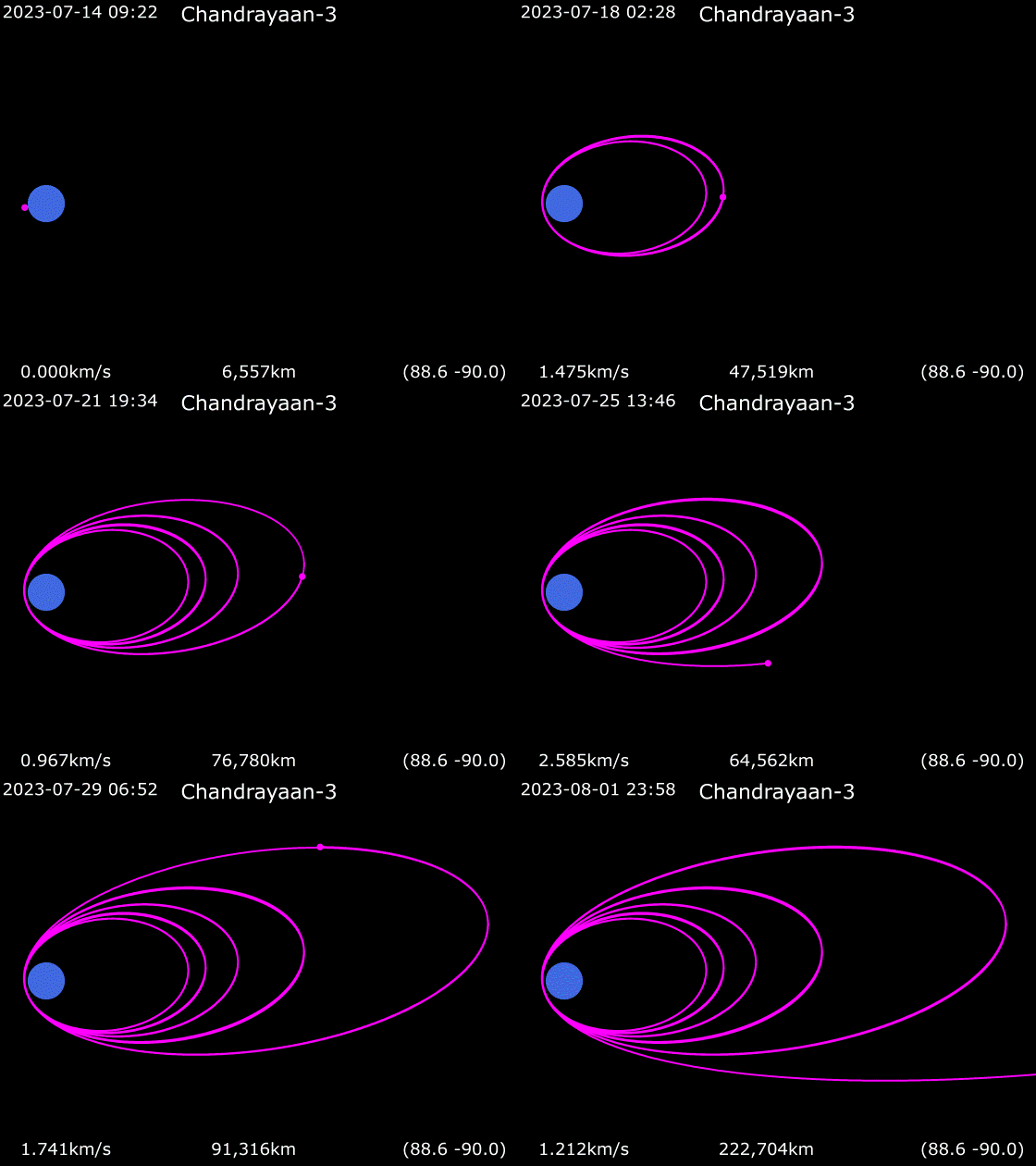
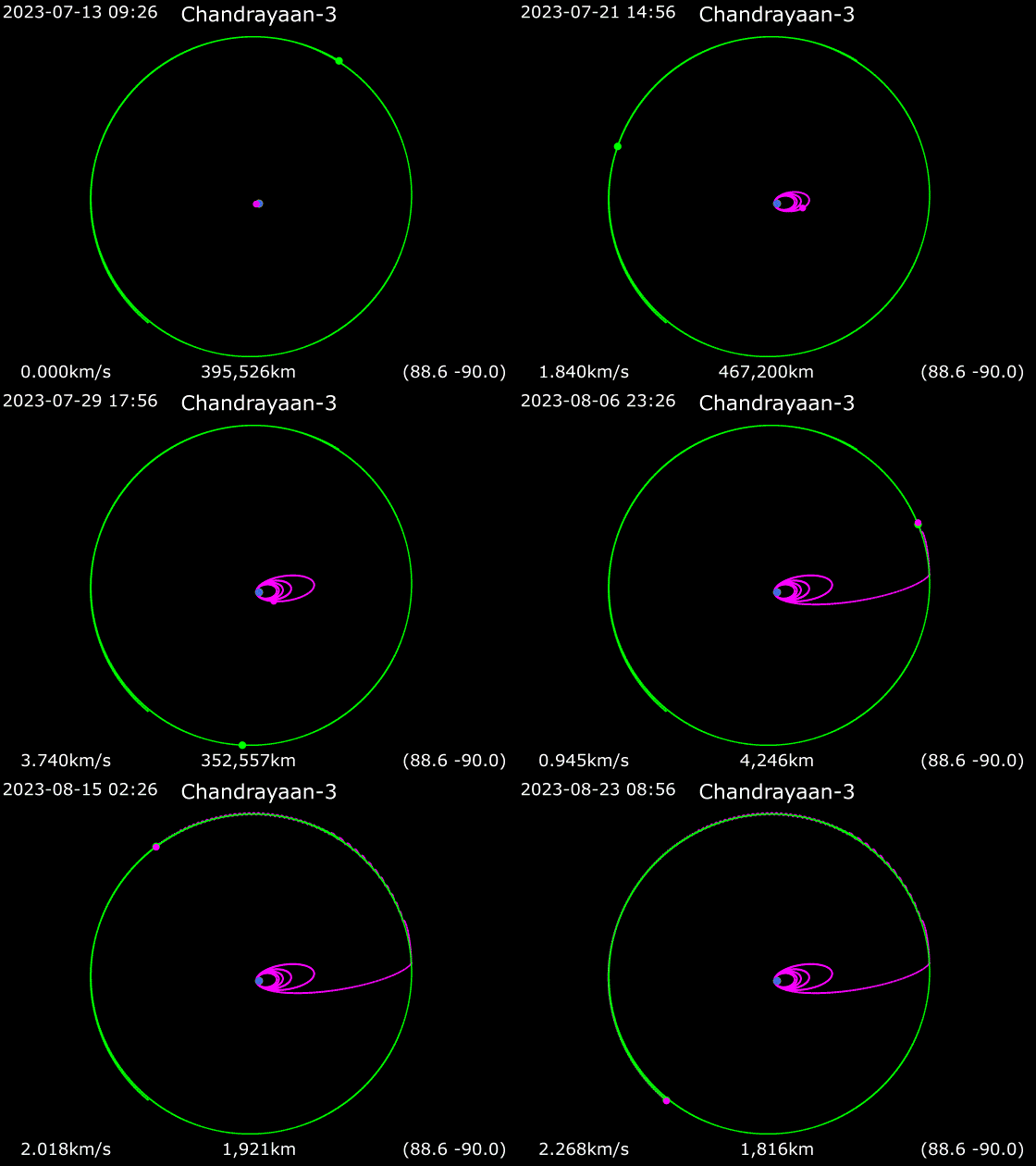
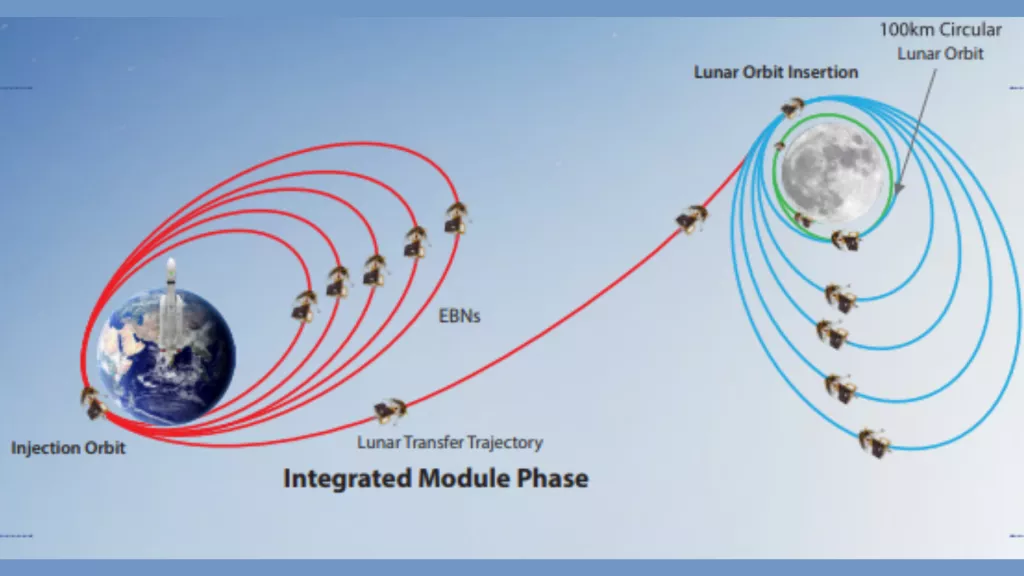
AFTER a textbook launch on July 14, Chandrayaan-3 is orbiting the earth in a highly elliptical orbit and, at the time of going to press, has executed three out of five orbit-raising burns as per schedule. As of now, the spacecraft is 228 km from Earth at its nearest and 51,400 km from Earth at its farthest
India’s Chandrayaan-3 spacecraft is continuing its circuitous journey to the moon with a series of burns to raise its orbit.
Chandrayaan-3 launched on July 14 into an orbit around Earth and has been slowly boosting its orbit ahead of a final shot toward the moon.
The lunar spacecraft’s propulsion module completed a fourth orbit-raising maneuver on Thursday (July 20), the Indian Space Research Organisation (ISRO) stated. The engines fired at the spacecraft’s closest approach to Earth, raising its apogee, or the farthest point from Earth of its orbit.
To rename the package name in Android Studio, you can follow these steps:
Make sure you have a backup of your project or use version control (e.g., Git) to track the changes before renaming the package.
In the Android project view, right-click on the package you want to rename, typically located under the “java” or “kotlin” directory.
Select “Refactor” from the context menu, and then choose “Rename” or press the “Shift + F6” shortcut.
In the Rename dialog, select the “Rename package” option.
Enter the new package name in the “New name” field. Make sure to follow the package name conventions (e.g., com.example.myapp).
Select the scope of the rename operation. By default, it should be set to the package and all its usages.
Click “Refactor” to perform the package rename. Android Studio will update all references to the package throughout your project.
Review the changes in the “Refactoring Preview” dialog to ensure that the renaming operation did not introduce any errors or unexpected modifications.
Click “Do Refactor” to apply the changes.
After the refactoring is complete, you may need to sync your Gradle files by clicking the “Sync Now” button that appears in the toolbar. This ensures that the package name is updated in your project’s configuration files.
Clean and rebuild your project to verify that everything is working correctly with the new package name.
Note: Renaming the package name might affect some references and imports in your project. You may need to update any affected references manually if they are not automatically resolved by Android Studio.
It’s important to be cautious when renaming the package name, as it can have implications for resources, manifest files, dependencies, and more. Make sure to thoroughly test your app after the package name change to ensure its proper functioning.
Change Manually Package Name In Build Gradle App or Module